Adding ads to a WordPress video site is easy. Knowing which ad works is the hard part. Most site owners pick one ad network, paste its code once, and never test anything else. I think this is the most expensive mistake on a video site. Do not choose your ad network by guessing. Put two or more on the same spots, let them compete, and let the numbers decide.
This guide shows how, step by step. It answers the questions site owners ask most often about ads, and shows the mistakes to avoid.
TL;DR
- Keep your ad codes out of your theme settings. Put them in one dashboard, so you can change ad network in minutes, not in an afternoon.
- Let your banners compete. Two banners on the same spot, same visitors: one can get ten times more clicks than the other. Rotation finds it for you.
- Judge a banner on its CTR, not on your feeling. And keep your own visits out of the stats.
- Desktop and mobile are two spots, not one. A desktop banner can break your page on a phone.
- Never leave a spot empty. A fallback code that pays less is still better than nothing.
- Match the ad to the page with category targeting, when you have different sections.
The tool I use as the example is WPS Ad Manager, our WordPress plugin for this job. The advice works with any tool.
First, what "adding ads" means on a video site
Most tutorials about ads on WordPress explain Google AdSense. Many video sites are not in AdSense (Google does not allow its ads on sexually explicit content), and many owners want more than one network anyway. So in this guide, "adding ads" means this:
- You sign up with an ad network (a company that sells your ad spaces to advertisers).
- The ad network gives you a piece of code: a few lines of HTML or JavaScript for each banner.
- You paste that code on your site, in the spots where you want ads: the header, the sidebar, around the video player, the footer.
When visitors load a page, the code shows a banner. When they click it, the ad network counts the click. Most ad networks pay for clicks or for views, so the banner that gets more clicks usually earns more.
That is all. The rest of this guide is about doing step 3 well.
Keep your ad codes in one dashboard, not in your theme
A question site owners often ask:
My ad network gave me a code. Where do I paste it?
Most video themes have an "Ads" section in their options, with one box per spot. It works. But after a few months, your codes are spread across theme options, widgets and sometimes template files. When you want to try another ad network, you have to find every old code first. Many site owners spend an afternoon on this, and some give up and keep a network that pays them less.
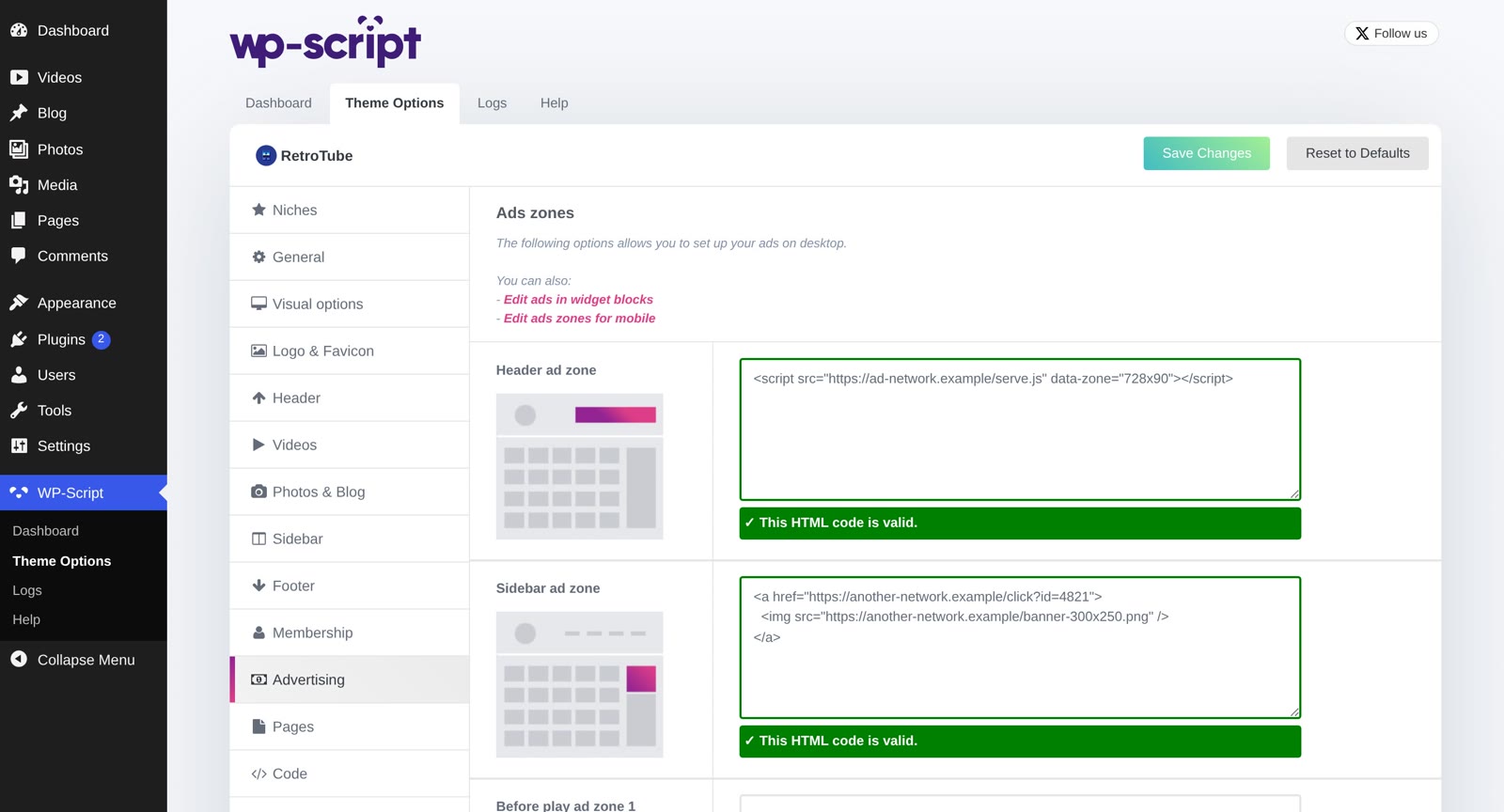 Ad codes pasted one by one in the ad zones of a theme's options
My advice: paste every ad code in one place, and give each banner a name you will still understand in six months ("Network A, sidebar, 300x250"). In WPS Ad Manager, a banner is a name, the code from your ad network, and the spot where it shows. Nothing connects to your ad network account: the plugin shows the code you gave it, so any network works.
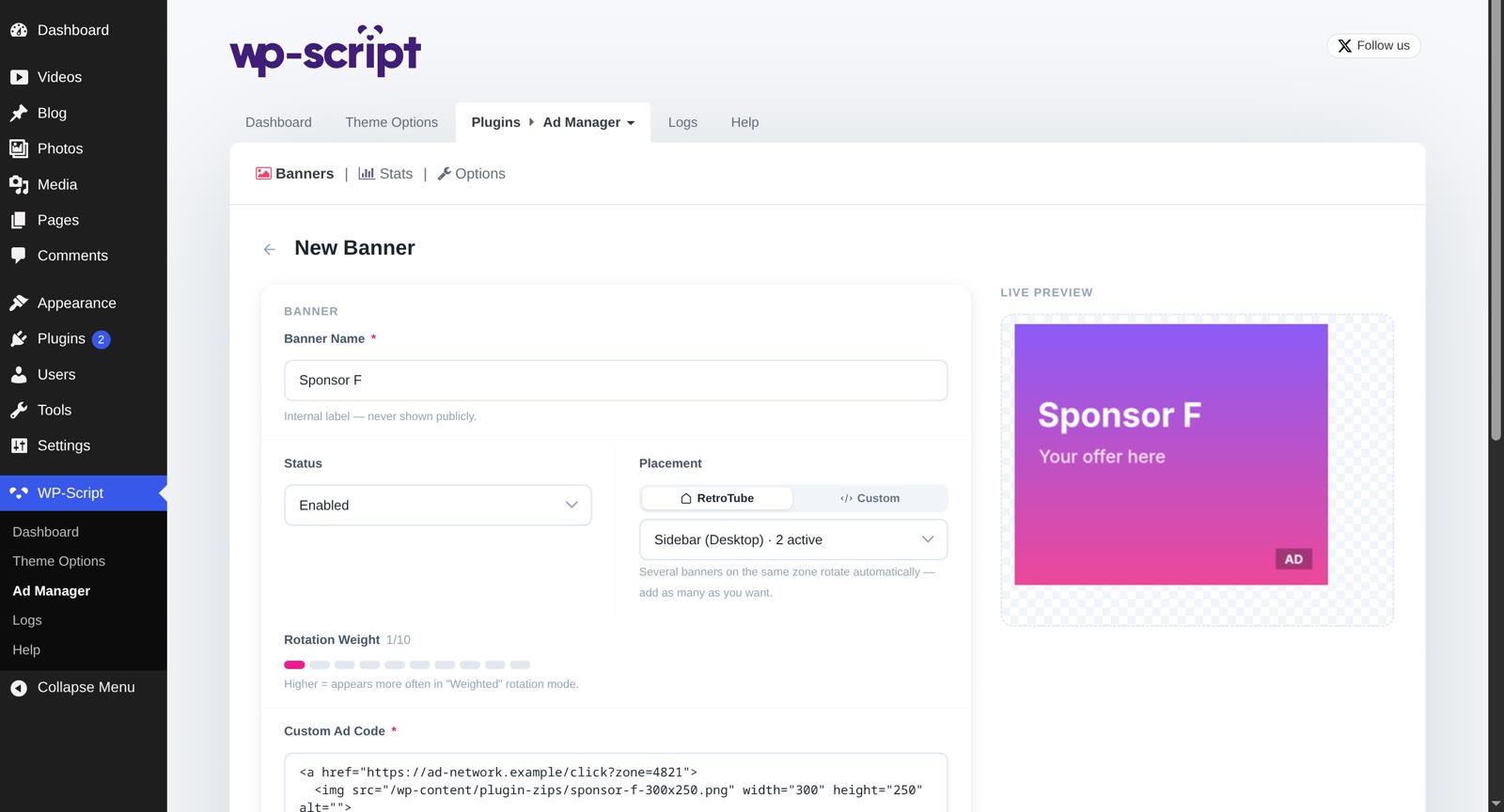 The new banner form: a name, a status, a placement and the ad code
Two more common cases:
- Your theme only accepts an image, and your ad network gave you a script. A dashboard that takes the raw code solves it.
- A bad ad code breaks your site (unwanted popups, redirects). You need to switch it off now. With one dashboard, it is one click on that banner, not a search through your theme.
The limit: if you have one banner, one spot, and you never change ad network, your theme options are enough. You do not need a plugin for that.
Let your ad networks compete on the same spots
Here is the core of this guide.
Two ad networks want your traffic. Which one should you choose? It is a very common question, and the honest answer is: nobody knows in advance, not even the networks. It depends on your visitors, your countries and your content.
So do not choose. Put both banners on the same spot and let them share the views. This is called rotation.
| Example | Banner A | Banner B |
|---|---|---|
| Visitors a day | 1,000 | 1,000 |
| Pages per visitor | 3 | 3 |
| Views of the banner a day | 3,000 | 3,000 |
| CTR (the share of views that become a click) | 2.9% | 0.3% |
| Clicks a day | 87 | 9 |
This is an example to show the method, not a real result. Your numbers will be different.
Same site, same visitors, same spot: one banner gets almost ten times more clicks. Without rotation and stats, nothing on your site tells you this. You would keep banner B for months.
WPS Ad Manager has three rotation modes. You choose one in the options:
| Mode | What it does | When I use it |
|---|---|---|
| Weighted | Each banner has a weight from 1 to 10. A banner with weight 6 shows about six times more than a banner with weight 1. | When you already know your best banner and want to give it most of the views. |
| Random | Every banner gets the same share of views. | For a fair test between new banners, the first days. |
| Auto-optimized | Looks at the CTR of each banner over the last 7 days and gives more views to the banners that get clicked. | Most of the time, once the test is running. |
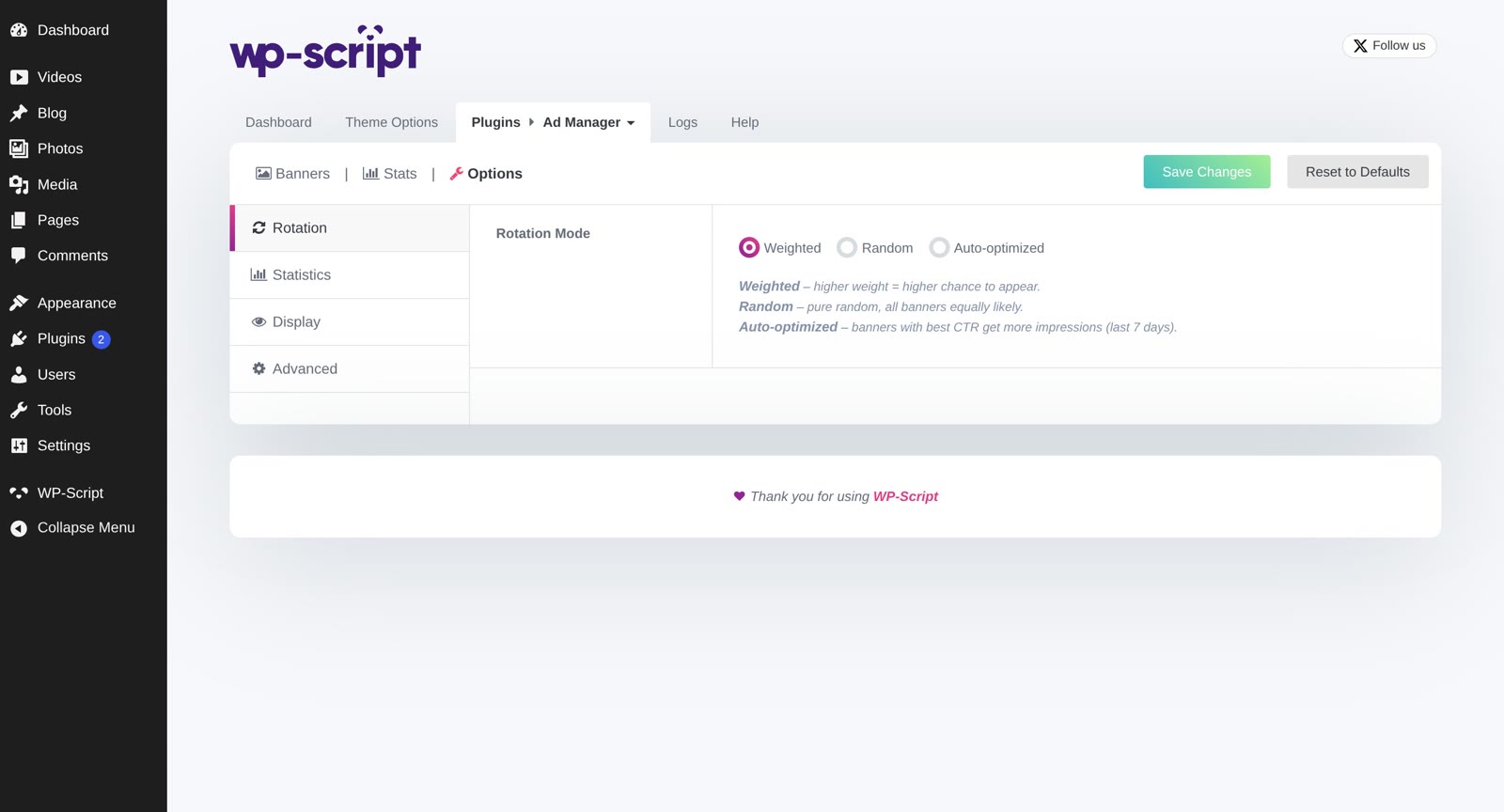 The rotation mode setting: Weighted, Random or Auto-optimized
My recommendation: start with Random for a few days, then switch to Auto-optimized and stop touching the weights. Auto-optimized does every day the work you would do by hand.
How it works, exactly: in Auto-optimized mode, each banner gets a weight equal to its CTR (in percent) times 2, between 1 and 20. In the example above, banner A (2.9%) gets a weight of 6 and banner B (0.3%) gets a weight of 1. So banner A shows about 6 times out of 7. Banner B does not disappear: it keeps a small share of views, so if it gets better next week, the plugin sees it. A new banner with no stats yet starts with a weight of 5, so it gets a fair chance.
The limit: rotation needs traffic. With 3,000 views a day, a banner at 0.3% gets about 9 clicks a day, and you see the difference in a few days. With 100 views a day, it gets one click every three days, and you need weeks before the numbers mean something. On a small site, test fewer banners at the same time: two, not five.
Judge a banner on its CTR, and remove your own visits
A question site owners often ask:
My ads earn almost nothing and I don't know which one is the problem.
When I see this question, the answer is almost always in the numbers per banner, and the owner has never looked at them.
WPS Ad Manager counts the views (impressions) and the clicks of each banner, and shows the CTR. You can look at today, the last 7 days, the last 30 days or all time.
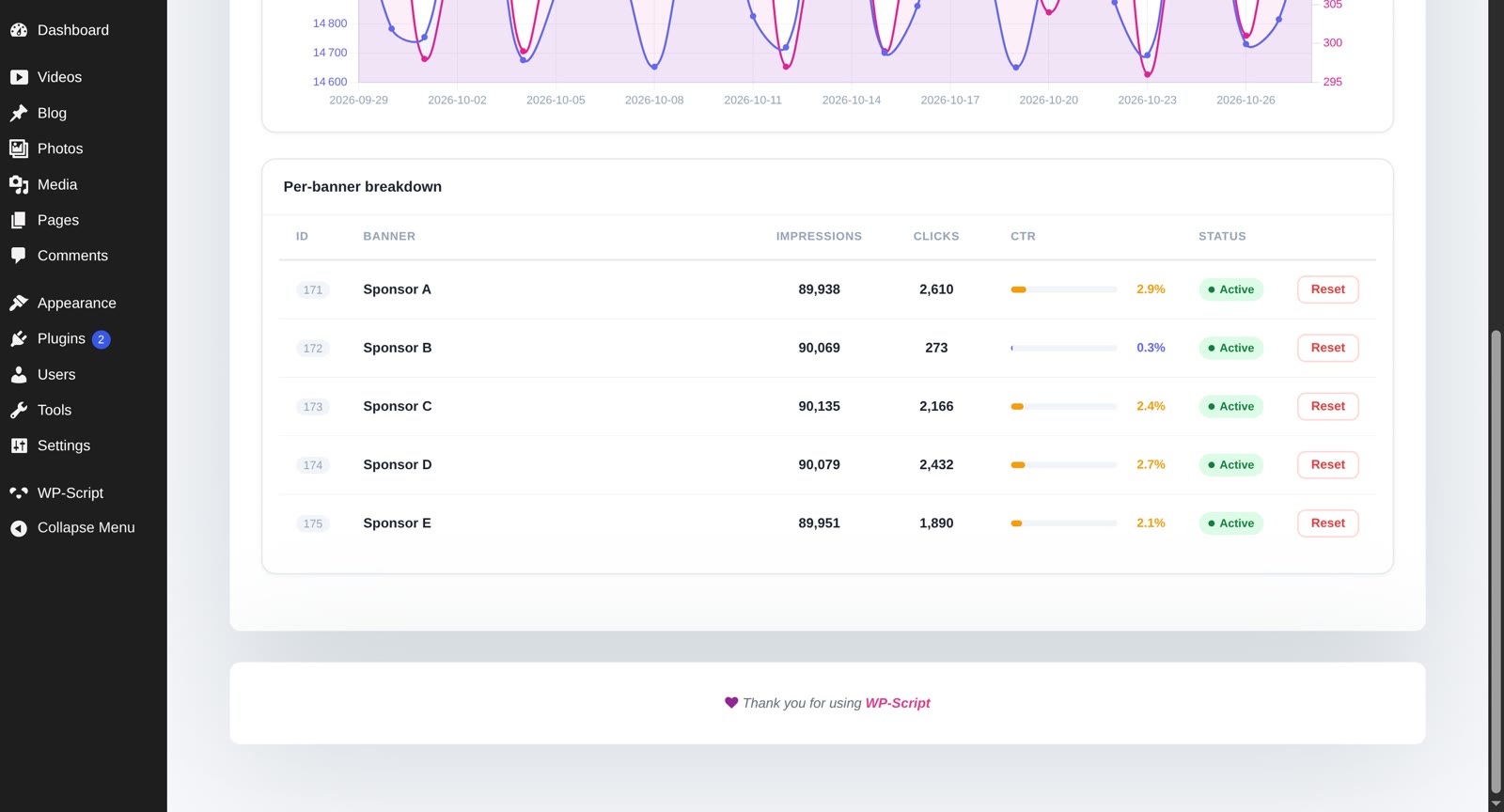 Impressions, clicks and CTR for each banner, side by side
Three habits I recommend:
- Compare banners on the same spot and the same period. A header banner and a footer banner do not get the same attention. Comparing them tells you about the spot, not the banner.
- Reset the stats of a banner when you change its code. Otherwise, the old numbers hide the new ones. Each banner has its own reset button.
- Keep your own visits out. You visit your site more than anyone. If your visits count, your stats lie. The "Skip Admin Users" option is on by default: it ignores the views and clicks of administrators. It does not ignore editors, or you when you are logged out. Check your numbers with that in mind.
The limit: the CTR tells you which banner gets clicked. It does not tell you how much the ad network pays for each click. Two networks can pay very different amounts. So once a week, put your CTR next to the earnings page of each ad network. The CTR finds the problem, your network's report confirms the money.
Desktop and mobile are two spots, not one
A question site owners often ask:
My banners show on desktop but not on mobile.
The reason is almost always the same: on a video theme, the desktop header and the mobile header are two different zones. A banner placed in the desktop zone only shows on desktop. And this is a good thing, because a banner made for a desktop screen (728 pixels wide, for example) does not fit on a phone. It can push your video player down, or make the whole page scroll sideways.
My advice: treat each mobile zone as its own spot, with its own banner in a mobile size (300x250 or 300x100, for example), and test it like the desktop ones.
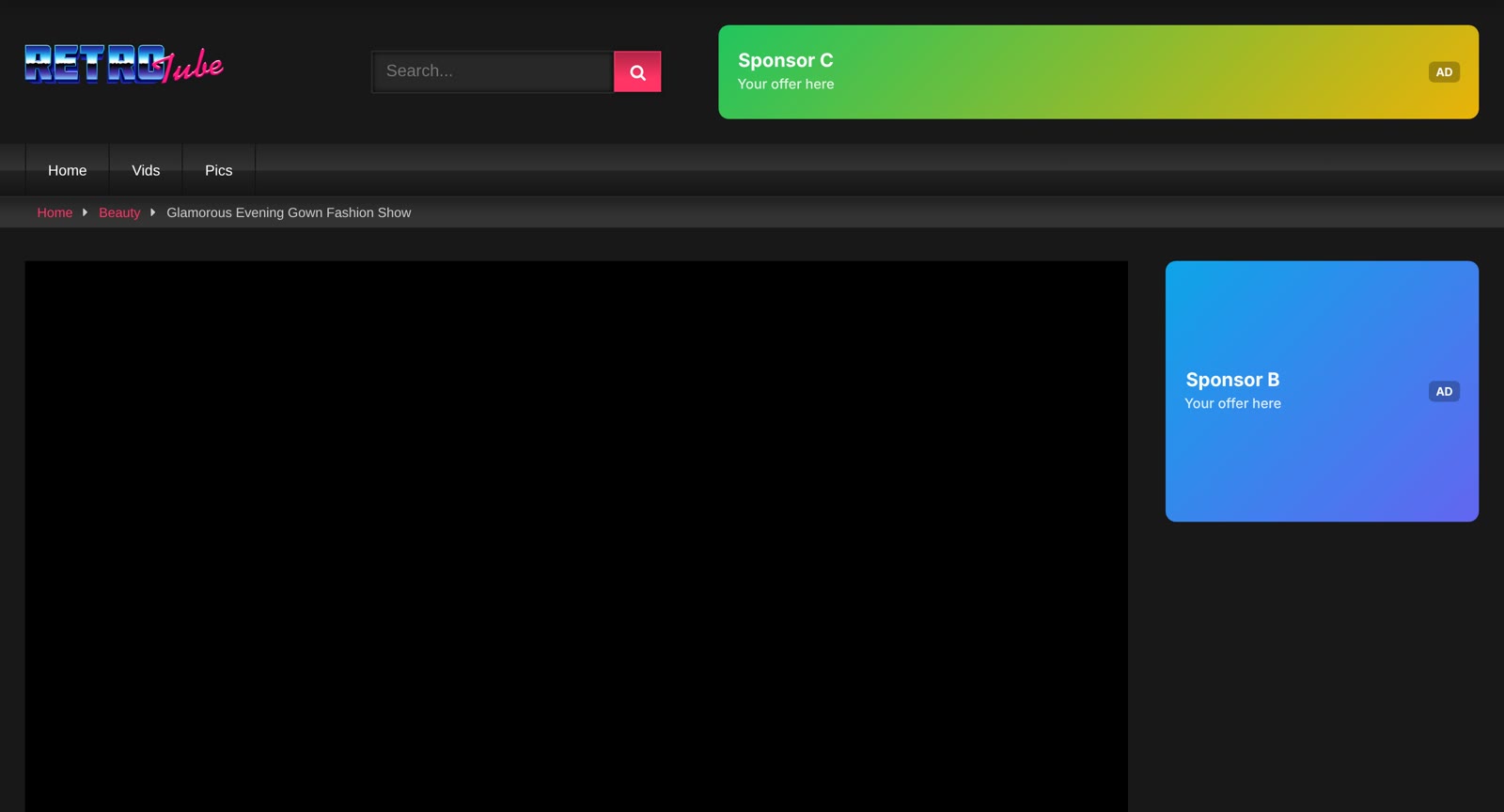 Two banners on a video page: one in the header, one next to the player
On our RetroTube theme, WPS Ad Manager knows the 10 ad zones and fills them for you: header, sidebar, under the player and footer (each on desktop and on mobile), and two zones before the video starts. You choose the zone in the banner form, and you never edit a theme file. It works the same way on UltimaTube, KingTube, KolorTube, FamousTube and VTube, with the ad zones of each theme.
The limit: this automatic placement works on 6 WP-Script themes (RetroTube, UltimaTube, KingTube, KolorTube, FamousTube and VTube) and their child themes. On other themes, you place banners with the Gutenberg block or the [adum_ad] shortcode, anywhere you can put a block or a shortcode: a widget area, a post, a page. For example, [adum_ad placement="sidebar"] shows a banner from the rotation of that spot. The documentation lists every option.
Never leave an ad spot empty
An empty ad spot earns nothing. It happens more often than you think: you are waiting for an ad network to approve a new spot, you paused a bad banner, or a category has no banner yet.
My advice: always have a fallback code. A fallback is a banner that shows only when no other banner matches the spot. It can be a banner from a second ad network that pays less, or a link to one of your own pages. It is less good than your best banner, and much better than nothing.
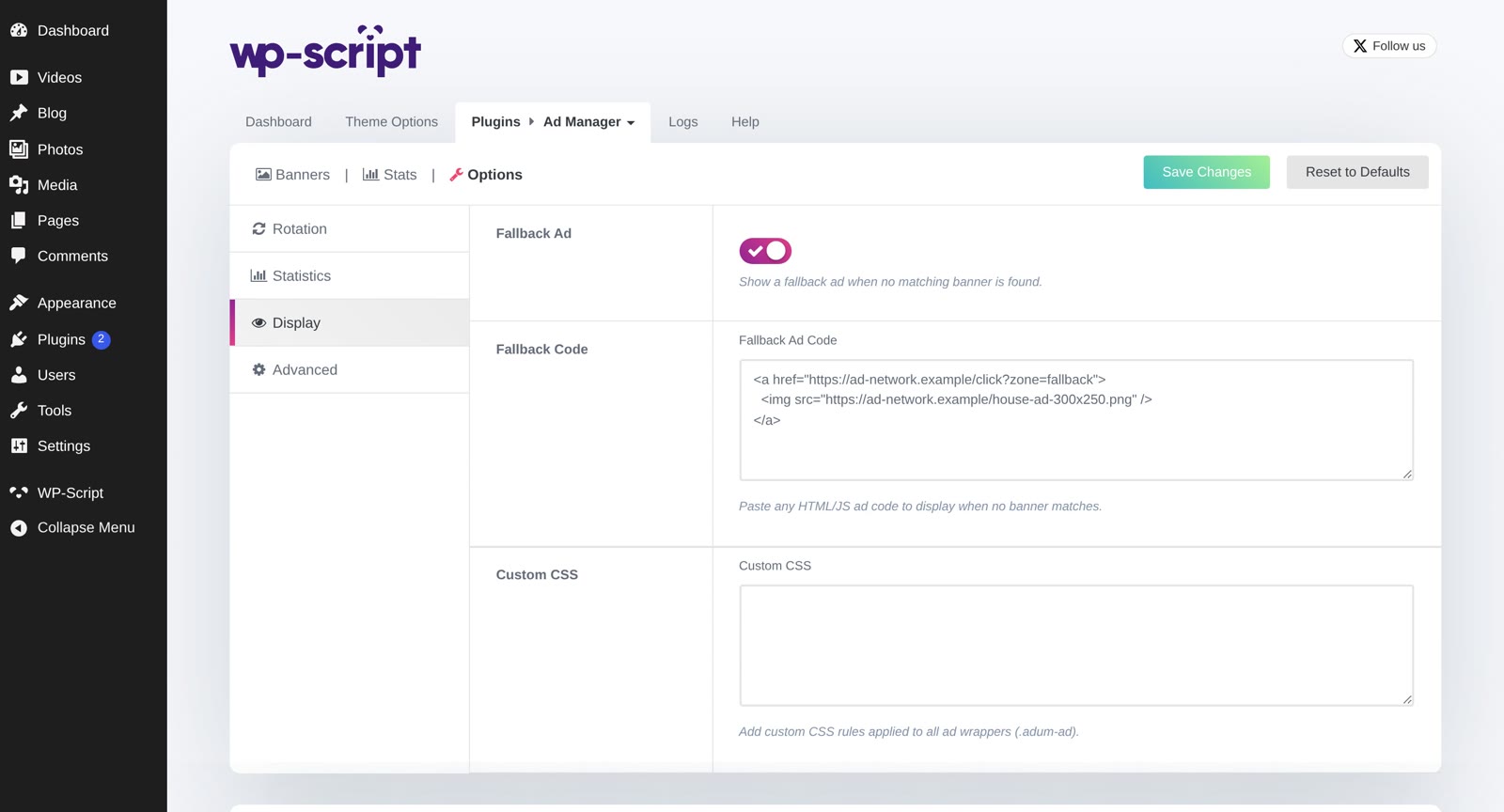 The fallback ad option: turned on, with its own ad code
In WPS Ad Manager, it is one switch and one code box in the display options.
The limit: do not use an aggressive ad as your fallback (a popup that covers the page, a redirect). A fallback shows on many pages at once, often for days. If it makes visitors leave, the empty spot was better.
Match the ad to the page with category targeting
If your site has different sections, one ad will not fit all of them. An advertiser who fits your "cooking" section may get no clicks in your "gaming" section. And sometimes a sponsor pays you for one category only.
My advice: when a banner fits one section, show it only there. In WPS Ad Manager, each banner has a Category Targeting field. A banner with no category shows everywhere. A banner with categories shows only on the videos and the archive pages of those categories.
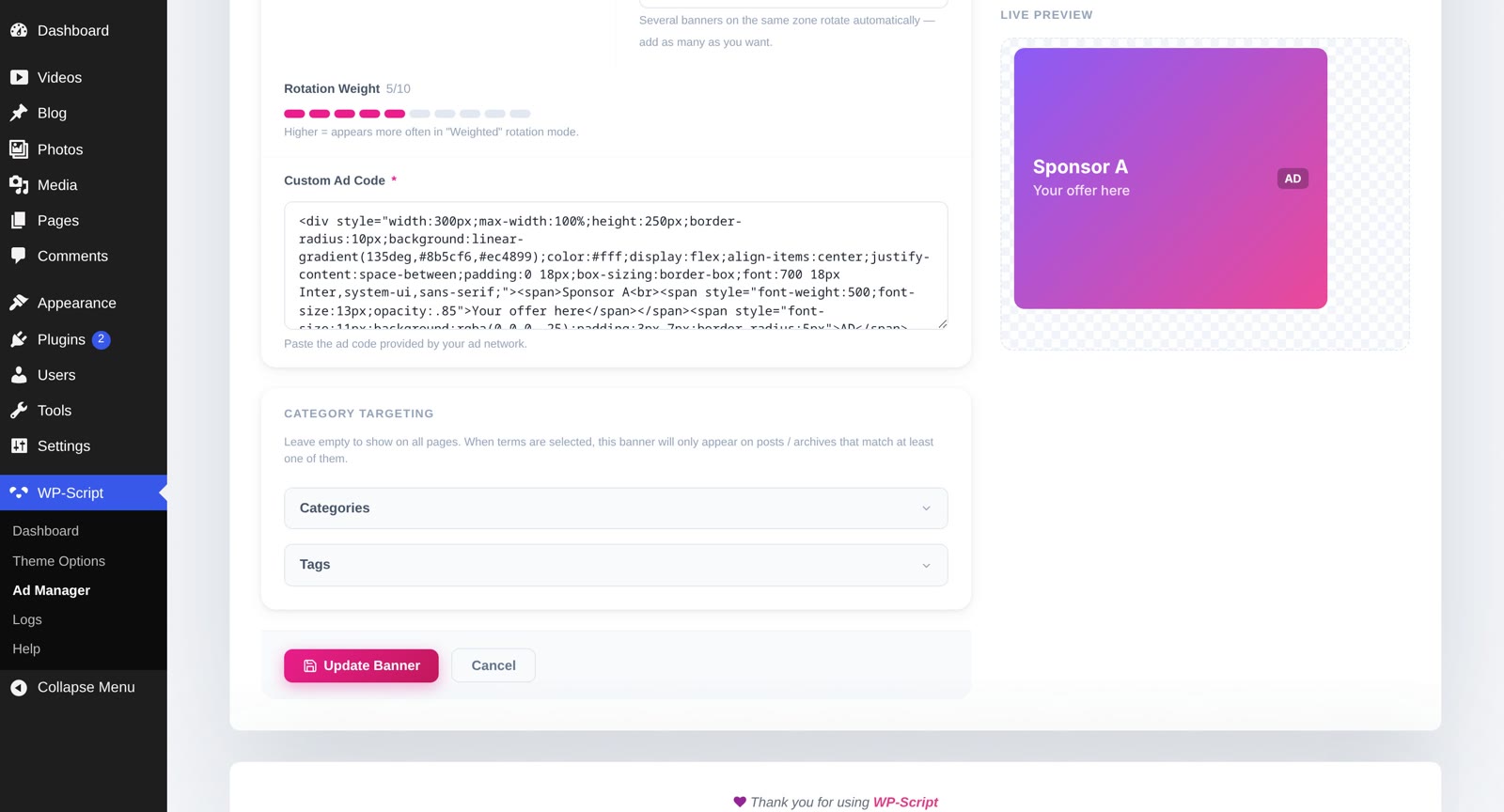 Category targeting in the banner form, under the ad code
The limit: a banner with categories does not show on pages that have no category, like your home page. Keep at least one banner with no category (or a fallback) on every spot. And if you have only a few categories, or one banner per spot, targeting adds work for nothing. Start with rotation; add targeting later.
What to do now
- List the spots where you have ads today, on desktop and on mobile. Note which ones are empty.
- Take your best spot (usually the header or the sidebar) and put two banners from two ad networks on it.
- Run Random for a few days, then Auto-optimized.
- After two weeks, compare the CTR with the earnings report of each network, and keep the winner.
Then do the same on the next spot. If you want the full picture of the ways a video site can earn money, ads are only one of them: read our guide to monetizing a video site.
WPS Ad Manager does all of the above in one WordPress screen. It is also part of Full Access, with every WP-Script theme and plugin, and you have 14 days to try it, money back if it is not for you.
FAQ
Which ad networks work with WPS Ad Manager?
All of them. The plugin never connects to an ad network account. You paste the code your network gave you, and the plugin shows it, rotates it and counts its views and clicks. A deal with a direct sponsor works the same way: paste their banner code.
What does Auto-optimized rotation do exactly?
It gives each banner a weight based on its CTR over the last 7 days (the CTR in percent times 2, between 1 and 20), then shows banners in proportion to their weight. The best banners get most of the views, the weak ones keep a small share, and new banners start with a weight of 5. It recalculates all the time, so you never rebalance by hand.
Do I need to edit my theme files?
No. On RetroTube, UltimaTube, KingTube, KolorTube, FamousTube and VTube, you choose the zone in the banner form. On any other theme, you use the Gutenberg block or the [adum_ad] shortcode, which you add from the WordPress admin.
How long should a test between two banners run?
Until each banner has enough clicks to compare. As a simple rule, wait until each one has at least a few dozen clicks. On a site with a few thousand views a day, that is a few days. On a small site, it can take weeks.
Do my own visits count in the stats?
Not if you are logged in as an administrator: the "Skip Admin Users" option is on by default. Visits by editors, or by you when you are logged out, still count.
Can I use it on several sites?
Yes. The license comes for 1 site, 3 sites or unlimited sites, and Full Access includes it too. Each site has its own banners, rotation and stats.